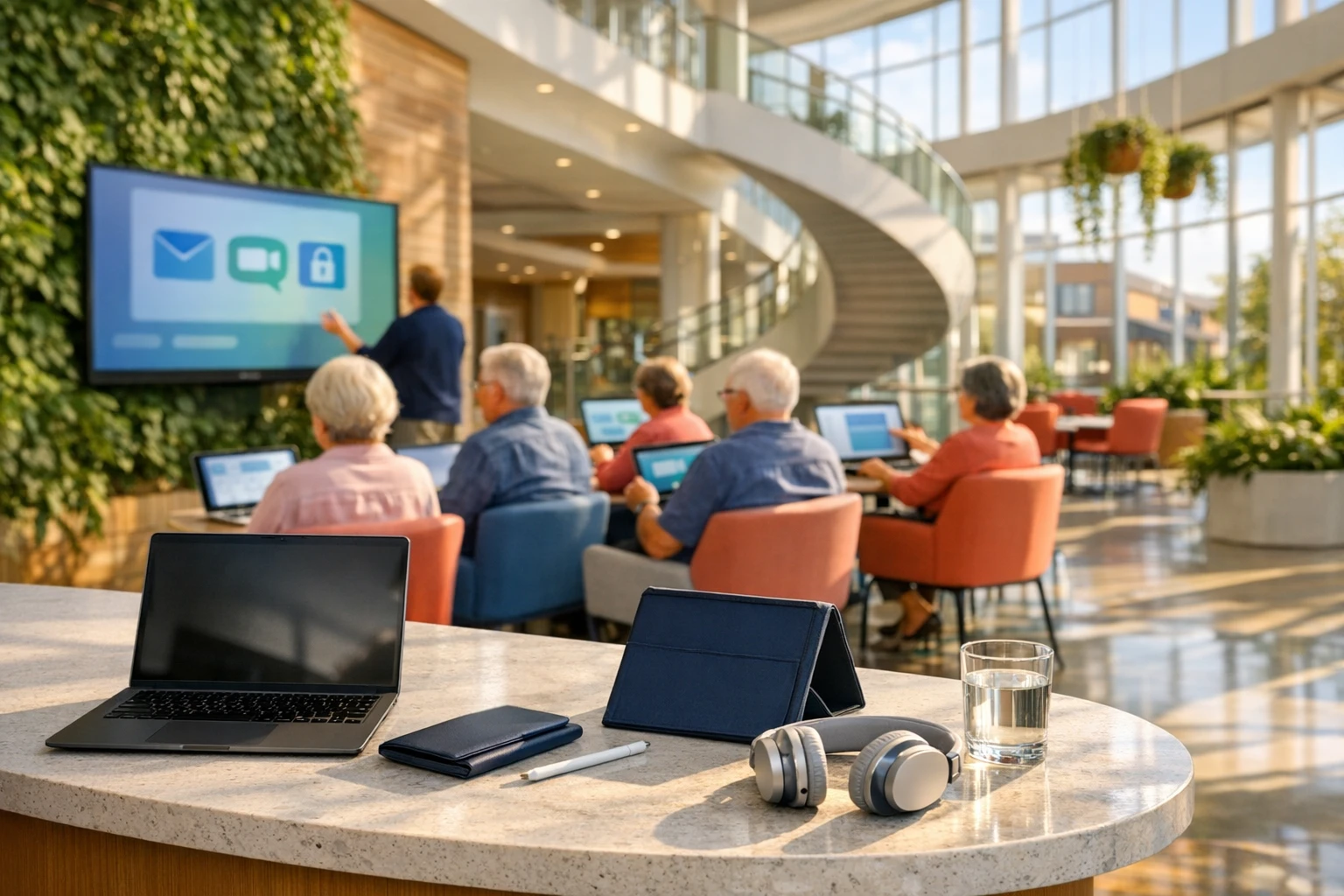
Understanding Computer Classes for Seniors: A Beginner-Friendly Guide
Learning to use a computer later in life is not a sign of being behind; it is often a practical step toward staying connected, informed, and independent. Computer classes for seniors can turn confusing screens into useful tools for banking, video calls, health portals, and everyday problem-solving. The right course moves at a steady pace, explains jargon plainly, and respects different learning styles. This guide explores what these classes teach, where to find them, and how to choose one with confidence.
Outline
- Why computer classes matter for older adults
- What a beginner-friendly curriculum usually includes
- How class formats differ in pace, cost, and support
- What to evaluate before signing up
- How seniors can turn a first lesson into lasting confidence
Why Computer Classes Matter for Older Adults
Technology now sits quietly in the middle of ordinary life. Doctor appointments are booked online, family photos arrive through messaging apps, bills are paid through websites, and travel plans often begin with a search bar. For seniors, this shift can feel like a door has been moved without warning. What used to happen at a counter, over a landline, or through the mail may now require a password, a browser, or a phone app. That is exactly why computer classes matter. They do not simply teach people how to use a device; they help people participate more fully in modern daily life.
Many older adults approach technology with practical goals rather than abstract curiosity. One person may want to join video calls with grandchildren. Another may need to access a patient portal, renew prescriptions, or manage retirement accounts. Some simply want to read news, look up bus times, or avoid depending on others for every small online task. Computer classes can support all of these goals by turning unfamiliar tools into understandable routines. Good instruction reduces the feeling that technology is a private club with an invisible password.
There are also emotional and social benefits. Studies and community education programs have repeatedly found that digital skills can reduce isolation by making communication easier. A message sent across town or across the ocean arrives just as quickly. A senior who learns to use email, search tools, and video chat often gains more than convenience; they gain access to conversation, entertainment, learning, and a stronger sense of agency. In that way, a mouse click can feel surprisingly human.
At the same time, older learners often face real barriers that younger instructors may overlook. These can include reduced vision, hearing changes, arthritis, memory concerns, anxiety about making mistakes, and frustration with jargon. A beginner-friendly class addresses these challenges openly instead of treating them as side issues. Instructors may use large print handouts, slower demonstrations, repetition, and hands-on practice. Small class sizes also help because learners can ask questions without feeling rushed.
- Independence: handling everyday tasks without relying on relatives
- Connection: staying in touch through email, messaging, and video calls
- Safety: learning to recognize scams, fake links, and suspicious requests
- Confidence: replacing fear of technology with step-by-step familiarity
In short, computer classes for seniors are important because digital access increasingly shapes personal freedom. The best programs respect the learner, focus on real-life use, and prove that it is never too late to become comfortable with technology.
What Seniors Usually Learn in a Beginner Computer Class
Most senior-focused computer classes start with the basics, and that is a strength rather than a limitation. A well-designed course does not assume prior knowledge. It begins by introducing the device itself: what the screen does, how the keyboard works, what a mouse or touchpad controls, how icons open programs, and how to adjust volume, brightness, or text size. For tablet and smartphone users, the lessons may include tapping, swiping, and understanding menus. These first skills can seem small, yet they form the grammar of digital life. Without them, every online task feels like reading a map with no street names.
After device basics, classes often move into internet use. Seniors typically learn what a browser is, how to enter a web address, how search engines work, and how to tell the difference between ads and regular results. That distinction matters because online spaces are not always designed with clarity in mind. A beginner may click the brightest button rather than the safest one. Instructors therefore teach not just where to click, but why one option is better than another. This practical judgment is one of the most valuable outcomes of a good course.
Communication tools are another major topic. Email remains a common entry point because it connects to appointments, shopping receipts, documents, and family communication. Learners often practice creating an account, sending a message, attaching a photo, and organizing incoming mail. Video calling platforms may come next, especially for seniors who want face-to-face contact with friends or relatives. Messaging apps, photo sharing, and contact lists are also common lessons because they connect digital skills to emotionally meaningful outcomes.
Many classes now include a strong safety component. That is essential. Seniors are often targeted by phishing emails, fake tech support messages, and scam phone calls tied to online activity. A useful class should explain how to create passwords, identify suspicious links, avoid sharing private information, and understand two-factor authentication in simple language. Rather than scaring learners, good teachers help them build calm habits.
- Turning a device on and off properly
- Using a keyboard, mouse, touchpad, or touchscreen
- Browsing websites and searching for information
- Sending emails and joining video calls
- Saving files, printing documents, and organizing photos
- Recognizing scams and protecting personal data
Some programs also cover online shopping, telehealth portals, maps, streaming services, and digital forms. The best curriculum ties every lesson to a clear purpose. Seniors are not learning technology for technology’s sake; they are learning tools that can simplify everyday tasks and widen the circle of connection.
Comparing Different Types of Computer Classes for Seniors
Not all computer classes are built the same, and choosing the right format can make the difference between steady progress and unnecessary frustration. Seniors generally have several options: classes at public libraries, community centers, senior centers, community colleges, private tutoring sessions, and online courses. Each format offers distinct benefits, and the best choice depends on budget, learning pace, transportation, confidence level, and personal goals.
Public libraries are often an excellent starting point. Many offer free or low-cost technology workshops, and the atmosphere is usually welcoming rather than formal. Classes may cover email, internet basics, job searching, or smartphone use. The main advantage is accessibility. Libraries are familiar spaces, and staff members are often patient when helping beginners. The trade-off is that class schedules may be limited, and the curriculum may not go very deep if sessions are short.
Senior centers and community centers often provide the most age-aware environment. Instructors in these settings are more likely to understand common concerns such as slower hand movement, hearing loss, or the need for repetition. The teaching pace may be gentler, and social comfort is often higher because learners are among peers. Community colleges, by contrast, may offer more structured courses with clearer progression from basic to intermediate skills. These can be a strong option for seniors who enjoy a classroom routine and want a fuller curriculum, though the pace may be less flexible than in informal programs.
Private tutoring is another route. One-on-one lessons allow the teacher to tailor each session to the learner’s exact device, goals, and questions. If a senior only wants help with telehealth, online banking, photo storage, or a particular app, tutoring can be efficient. The downside is cost, which is usually higher than group classes. Online courses can also work well, especially for seniors who already know enough to join video lessons and follow written instructions. However, for complete beginners, learning how to use technology through technology can feel like climbing a ladder that starts one rung too high.
- Library classes: affordable, accessible, usually broad in scope
- Senior center classes: slower pace, peer support, age-aware instruction
- Community college courses: structured, detailed, sometimes more formal
- Private tutoring: customized, flexible, often more expensive
- Online classes: convenient at home, but best for learners with some basics already in place
When comparing options, seniors should also consider class size, travel distance, device compatibility, and follow-up support. A polished syllabus means little if the learner cannot hear the instructor or keep up with the pace. The best class is not necessarily the most advanced one; it is the one that meets the learner where they are and helps them move forward without embarrassment.
How to Choose the Right Class and Prepare for Success
Finding the right computer class begins with a simple question: what do you want to do when the class is over? That goal matters more than the course title. A senior who wants to message family, organize photos, and use video calls needs a different class from someone who wants to create documents, manage spreadsheets, or learn internet research. Clear goals help narrow the field and prevent the common problem of enrolling in a course that sounds useful but does not solve the right problem.
Once the goal is clear, it helps to ask practical questions before registering. How many students are in the class? Does the teacher have experience working with older adults? Is there time for hands-on practice, or is the class mostly lecture-based? Are printed instructions available to take home? Can the instructor help with tablets, smartphones, and laptops, or is the course focused on only one kind of device? These details matter. A patient teacher with a modest curriculum is often more effective than a brilliant one who moves too fast.
Accessibility is another key factor. Seniors should look for classrooms with good lighting, readable screens, and comfortable seating. If hearing is a concern, ask whether the room has amplification or whether the instructor speaks clearly and faces the class. If arthritis or limited mobility affects device use, classes that allow extra time and adaptive techniques are especially valuable. Some learners benefit from a stylus, an ergonomic mouse, or voice typing tools. A good program treats these needs as normal, not exceptional.
Preparation also improves the learning experience. Bringing a notebook, a list of passwords kept in a secure format, and the actual device used at home can make lessons more relevant. Practice between classes is equally important. Digital skills grow through repetition, not through one dramatic breakthrough. Ten calm minutes a day can be more effective than a long session once a month.
- Define one to three personal goals before enrolling
- Ask about pace, class size, and instructor experience
- Confirm that your device is supported
- Check whether printed guides or follow-up help are included
- Practice at home soon after each lesson
A useful trick is to judge a course by how it handles beginner mistakes. If questions are welcomed and repeated demonstrations are normal, that is a good sign. Seniors learn best in spaces where curiosity is rewarded, not rushed. The right class does more than explain buttons on a screen; it builds a learning environment where confidence has room to grow.
Conclusion: From First Click to Everyday Confidence
For seniors considering a computer class, the most important truth is this: progress does not require speed. It requires relevance, patience, and a setting that makes technology feel less like a test and more like a tool. A strong class meets older learners with respect. It explains unfamiliar terms without talking down to anyone, gives time for repetition, and connects each lesson to a useful real-world task. That approach matters because adults learn best when new information clearly improves daily life.
Computer classes can support independence in ways that are both practical and personal. A learner may start by figuring out how to move a cursor and end up booking appointments online, joining a family video call, scanning old photographs, or reading local news without waiting for someone else to explain it. These are not flashy victories, but they are meaningful ones. They restore control over routines that have increasingly moved onto screens. In a world where digital systems often feel designed for the fast and the fluent, a good class quietly proves that steady learning still works.
It is also worth remembering that confidence with technology rarely arrives all at once. More often, it appears in small moments: recognizing a scam email, saving a photo to the right folder, typing a message without hesitation, or reopening a website that once felt confusing. Those moments add up. What begins as uncertainty can become familiarity, and familiarity often becomes independence.
For the target audience of this guide, the best next step is a modest one. Choose a goal that matters to you, find a class that matches your pace, and allow yourself to be a beginner. There is no prize for rushing, and no shame in asking the same question twice. Technology may change quickly, but good teaching still relies on timeless principles: clarity, repetition, encouragement, and practice.
- Start with one practical goal, such as email or video calling
- Pick a class with patient instruction and hands-on support
- Practice often in short sessions
- Measure success by usefulness, not perfection
In the end, computer classes for seniors are not simply about screens, passwords, and menus. They are about staying connected, capable, and included. One careful lesson can open a surprisingly large door.