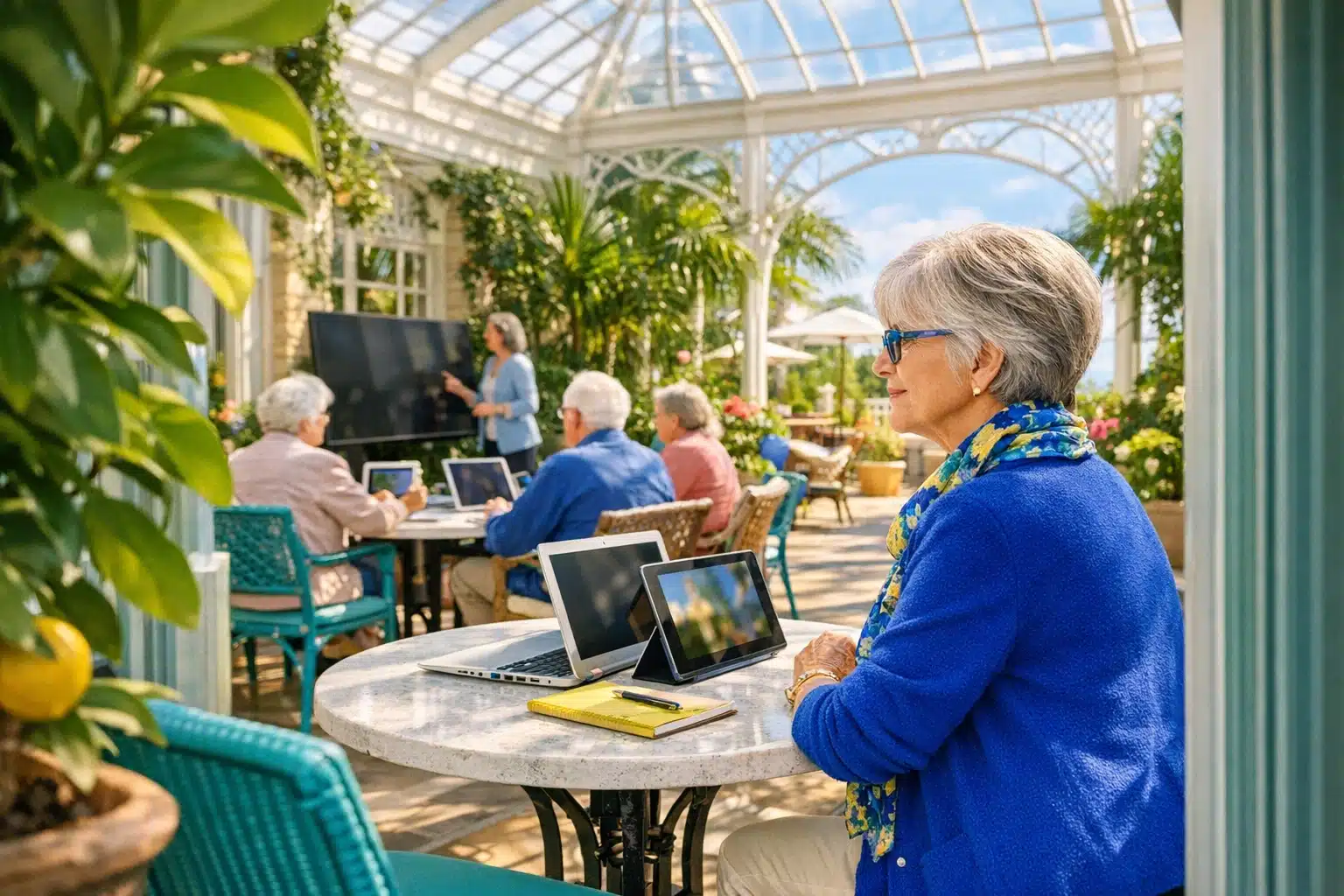
Computer Classes for Seniors: A Practical Information Guide
Learning basic computer skills can open doors that matter at any age, from video calls with family to safer online banking and easier access to health services. For many older adults, the real hurdle is not ability but finding patient instruction that respects their pace and goals. This guide explains what senior computer classes usually cover, where to find them, what they may cost, and how to choose a setting that feels comfortable instead of intimidating.
Outline: What This Guide Covers and Why Senior Computer Classes Matter
Computer classes for seniors work best when they begin with real life rather than technical theory. Most older adults do not sign up because they want to memorize hardware terms or explore advanced coding. They enroll because they want to read messages from grandchildren, refill prescriptions online, join a video appointment, organize photos, or understand whether a pop-up warning is real or fake. That practical focus is important, because the strongest classes are built around daily tasks and confidence, not speed. A patient instructor can turn a screen that once felt cold and confusing into a useful tool that supports independence.
Before looking at specific programs, it helps to have a clear outline of the topic. This guide will cover:
• where computer classes for seniors are usually offered
• how in-person, online, group, and one-to-one lessons compare
• which skills are commonly taught in beginner courses
• how to choose a class based on pace, cost, accessibility, and goals
• what benefits seniors and families can reasonably expect after consistent practice
The relevance of this subject keeps growing. Everyday services now assume at least some digital access. Medical portals, government forms, utility accounts, travel bookings, and even local event registrations often begin online. At the same time, more seniors are using smartphones, tablets, and laptops than in previous generations, which means demand for clear, respectful instruction has increased. Community organizations, libraries, colleges, and nonprofits have responded by creating programs specifically designed for older learners. These classes often use larger print handouts, slower demonstrations, repeated practice, and plenty of question time.
There is also a social side that should not be overlooked. Walking into a class and hearing someone else ask, “Wait, where did that button go?” can be strangely comforting. It reminds learners that confusion is normal and temporary. In many cases, the class becomes more than a lesson. It becomes a small weekly bridge to confidence, routine, and connection. That is why a practical guide matters: the right class can save time, reduce frustration, and help seniors find a learning environment that feels welcoming from the first session.
Where Seniors Can Find Computer Classes and How the Main Options Compare
Seniors today can learn computer skills in several settings, and each one offers different advantages. The most common starting points are public libraries, senior centers, community colleges, adult education programs, nonprofit organizations, and private tutoring. In many towns, libraries are especially valuable because they often provide free or low-cost digital literacy sessions. These classes may cover email basics, internet searching, printing documents, or using a smartphone. Libraries also tend to be less formal than colleges, which can make them feel more approachable for someone who has not taken a class in years.
Senior centers are another strong option, particularly for learners who want a familiar social atmosphere. A class in a senior center may move at a gentler pace and include more conversation, repetition, and hands-on help. Community colleges and adult education programs often provide more structured courses, sometimes with multi-week schedules and clearer learning outcomes. That can be ideal for someone who wants steady progress and a defined curriculum. However, college-based classes may feel slightly more formal, and costs can vary depending on location and program length.
Online classes have become a practical choice as well. Live video classes allow seniors to learn from home, which can be helpful for those with mobility limitations or limited transportation. Self-paced online tutorials can be convenient, but they require a bit more independence and may frustrate learners who want immediate answers. Private tutors, whether in person or virtual, provide the most personalized attention. They are often the best fit for learners with very specific goals, such as organizing photos, setting up a new laptop, or learning a particular app. The trade-off is usually price, since individual lessons cost more than group programs.
When comparing options, it helps to think in plain terms:
• Free or low-cost group classes are common at libraries and nonprofits
• Social, slower-paced learning is often strongest at senior centers
• Structured courses with regular schedules are common at colleges
• Home-based convenience is a major advantage of online instruction
• One-to-one tutoring offers customization but usually costs more
There is no universal best choice. A retired accountant who wants efficient lessons on spreadsheets may prefer a formal class, while a beginner who feels nervous about passwords and touchscreens may do better in a smaller community setting. The smart approach is to match the format to the learner’s comfort level, budget, transportation needs, and preferred pace. A course is only useful if it is easy enough to attend, clear enough to follow, and practical enough to improve daily life.
What Seniors Usually Learn in Computer Classes: Core Skills, Devices, and Everyday Tasks
Most beginner computer classes for seniors focus on a small set of practical skills that can be used almost immediately. The first lessons often cover the basics of turning a device on and off properly, using a mouse or touchpad, understanding a keyboard, opening and closing programs, connecting to Wi-Fi, and recognizing common icons. These steps may sound simple to experienced users, but they are foundational. If a learner is uncertain about how to click, scroll, type, or move between screens, every later task becomes harder than it needs to be.
Once those basics are in place, instructors usually move into communication tools and internet use. Email is a common topic because it remains essential for appointments, account verification, newsletters, and family contact. Many classes also teach video calling through widely used services, which can help seniors stay connected across distance. Internet browsing lessons often include how to search effectively, how to tell the difference between ads and search results, and how to spot suspicious links. This part of the curriculum matters a great deal because online scams often target confusion, urgency, or unfamiliarity.
Another common area is digital life management. Classes may explain how to:
• create and remember stronger passwords
• use a calendar for reminders
• save and find files or photos
• print documents or attachments
• use patient portals, pharmacy sites, or telehealth tools
• shop online carefully and recognize secure checkout pages
Device type also shapes the curriculum. A desktop or laptop class tends to emphasize file storage, keyboards, printing, web browsing, and office-style tasks such as writing letters or creating simple documents. A tablet class often focuses more on touch gestures, apps, photo sharing, and reading on screen. Smartphone sessions usually center on calls, text messages, contacts, maps, camera use, settings, and app downloads. Some programs are mixed-device, but many seniors learn faster when the instructor teaches specifically for Windows laptops, Mac computers, iPads, Android tablets, or smartphones rather than blending everything together.
The most effective programs also include digital safety from the beginning rather than treating it as a side note. Seniors should leave class knowing that real companies rarely demand immediate payment by gift card, that passwords should not be shared casually, and that public Wi-Fi requires extra caution. A good course does more than show where to click. It teaches judgment. And that is where the real progress appears: not in memorizing every menu, but in learning how to pause, read carefully, and make confident decisions on screen.
How to Choose the Right Class: Questions to Ask, Costs to Expect, and Ways to Prepare
Choosing a computer class for seniors is a little like choosing walking shoes. The right pair does not impress because it looks advanced; it works because it fits well and supports the person using it. In the same way, the best class is not automatically the longest, the cheapest, or the most technical. It is the one that matches the learner’s goals, pace, comfort level, and learning style. A senior who wants to send emails and attend telehealth visits does not need the same course as someone who wants to manage digital photos, write documents, and use spreadsheets.
Start by asking a few direct questions. What does the class specifically teach? Is it for true beginners, or does it assume prior experience? How many students are in each session? Will learners use their own devices or school equipment? Is there time for questions, repetition, and hands-on practice? These details matter more than promotional language. A course described as “beginner friendly” may still move too quickly if it covers too many topics in one sitting. Small class sizes are often easier for seniors, especially when the instructor can walk around, repeat steps, and help learners one at a time.
Cost is another practical concern. Publicly funded programs, libraries, and community organizations often offer low-cost or free sessions. College programs may charge more, especially if they run for several weeks. Private tutors usually cost the most, though they can save time for learners with specific needs. Beyond tuition, ask about extra expenses such as printed materials, software, parking, or whether a device must be purchased. A low advertised price is less helpful if it hides additional requirements.
It is also worth checking accessibility and comfort factors:
• Is the room easy to reach and clearly signed?
• Are chairs, lighting, and screen visibility comfortable?
• Does the instructor speak clearly and use large-print materials?
• Are hearing or vision accommodations available?
• Can a family member attend the first session if needed?
Preparation makes a difference too. Learners should bring reading glasses if needed, write down passwords in a secure way, charge their device in advance, and carry a notebook for step-by-step reminders. Families can help by setting realistic expectations. Progress may be steady rather than dramatic, and that is perfectly fine. A useful class should reduce anxiety, not create more of it. Be cautious of programs that pressure learners to buy expensive devices, promise instant mastery, or ignore online safety. A trustworthy course is transparent, patient, and built around the learner’s real-world needs.
Conclusion for Seniors and Families: Small Steps, Useful Skills, and Lasting Confidence
Computer classes for seniors are not really about keeping up with trends. They are about making daily life easier, safer, and more connected. A person who learns how to join a video call, refill a prescription online, download a boarding pass, or recognize a scam message gains more than a technical skill. They gain flexibility. They gain options. They also gain a bit of breathing room in a world that increasingly expects digital participation.
For many seniors, the biggest obstacle is emotional rather than intellectual. Feeling behind can make the first class seem larger than it is. Yet the experience of learning later in life often comes with strengths that younger students do not always have: patience, life experience, practical judgment, and a clearer sense of purpose. Older learners usually know exactly why they want these skills, and that motivation is powerful. They are not studying for a test. They are learning to solve real problems, maintain independence, and stay connected to the people and services that matter most.
Families can play an important supporting role by encouraging progress without taking over. The goal is not to grab the mouse and do the task faster. The goal is to give the learner enough time to try, pause, ask questions, and remember the steps. A calm practice routine at home often helps more than a long lecture. Even fifteen or twenty minutes of repetition after class can build memory and comfort.
If you are a senior considering a class, a simple next-step plan can help:
• choose one main goal, such as email, video calls, or online safety
• find a local or online class designed for beginners
• ask whether the pace is appropriate for older adults
• practice between lessons using the same device each time
• celebrate small wins, because small wins become habits
The best outcome is not becoming a computer expert overnight. It is reaching the point where the screen feels less like a barrier and more like a doorway. With the right class, clear instruction, and regular practice, that doorway becomes easier to open. For seniors and their families, that makes computer education a practical investment in confidence, independence, and everyday connection.